GPU Stress Test - Volume Shader BM Benchmark Platform Background
Volume Shader BM - GPU Benchmark Platform

FREE ONLINE GPU STRESS TEST

No installation or account is required. Calculations run on your device after you select Start test. Temperature and GPU utilization are unavailable in this browser test.

Benchmark Preview

READY TO TEST

Click Start to Benchmark

Important Information

  • Tests may cause older devices to slow down or become unresponsive.
  • Close other applications before running the tests for accurate results.
  • Results may vary depending on your device's current load and temperature.

Environment & Performance

API:WebGL 1.0
Browser:Unknown
Limits:Detecting...
GPU:Detecting GPU...
OS:Unknown

Performance Metrics

FPS (current)0
FPS sample 1st percentile0
Estimated frame interval0 ms
Sample-to-average FPS ratio--
FPS (avg)0
FPS min0
FPS max0

Performance Testing

Testing methodology

Browser tests measure a particular workload on a particular browser. This guide explains how to repeat a run and interpret its limits.

What the numbers measure

FPS counts browser animation callbacks per second. It includes JavaScript, rendering, and browser scheduling. Frame consistency is an index calculated from FPS variation, not a hardware health certificate. A display refresh limit can cap FPS even when the GPU has spare capacity.

A repeatable comparison

Use the same browser version, viewport, zoom, power mode, and workload settings. Close competing tasks, keep the tab visible, allow a short warm-up, then repeat three times. Change one variable at a time; record all results rather than choosing the highest.

Keep a run record

Record the date, browser and OS versions, renderer if available, viewport, workload settings, duration, and FPS readings. Read temperature and clock speed separately with a supported hardware monitor.

This site cannot read GPU temperature, power draw, clock speed, or utilization through WebGL. Use a separate hardware monitor for those readings. A successful run does not guarantee stability in games, rendering software, or other workloads.

Testing methodology

GPU Stress Test FAQ

Answers about browser graphics tests, FPS interpretation, and common problems.

A WebGL 2 fragment shader repeats mathematical work at selectable stress levels for a timed run. Results include sampled FPS and a frame consistency index; no temperature or utilization sensor is read.

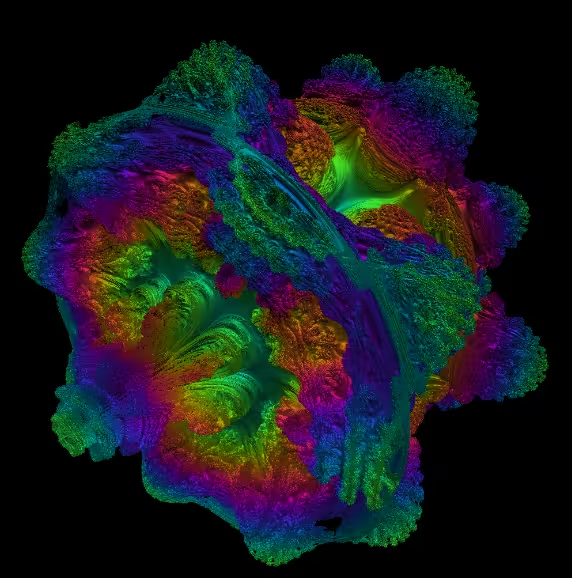
A WebGL fragment shader draws a procedural scene by ray marching. Use the same camera and shader to compare frame rates; editing the shader changes the workload.

Save your work, close competing apps, and keep the device ventilated. Use a current browser with hardware acceleration where available. Start with a short run and modest settings. Stop if the device becomes unresponsive or displays unexpected glitches.

A steady low FPS can simply mean a demanding workload. High FPS at a display refresh limit does not prove maximum GPU performance. Compare repeated runs with identical settings; differences between browsers also include their rendering engines.

No installation or account is required. Calculations run on your device after you select Start test.

A blank canvas or context loss can result from unsupported WebGL, browser memory limits, a driver reset, or software rendering. Reduce the workload and retry. Reproduce a problem in another application before drawing a hardware conclusion.

Start with the defaults. Observe FPS and the workload count for 30–60 seconds. Where configurable, change only Stress Level, then repeat under the same conditions. Some demonstrations adapt their workload automatically; compare both the workload count and FPS. Stop with the button or Escape.